
 Audiobook Studio 1.x docs
Make Your First Audiobook
This walk-through takes a short sample book from blank project to finished audiobook.
At a glance
- A short 2 to 3 chapter sample is the best first project.
- You will create a project, add text, assign voices, generate and assemble.
- If you installed the demo library, you can look around it first.
Before you begin
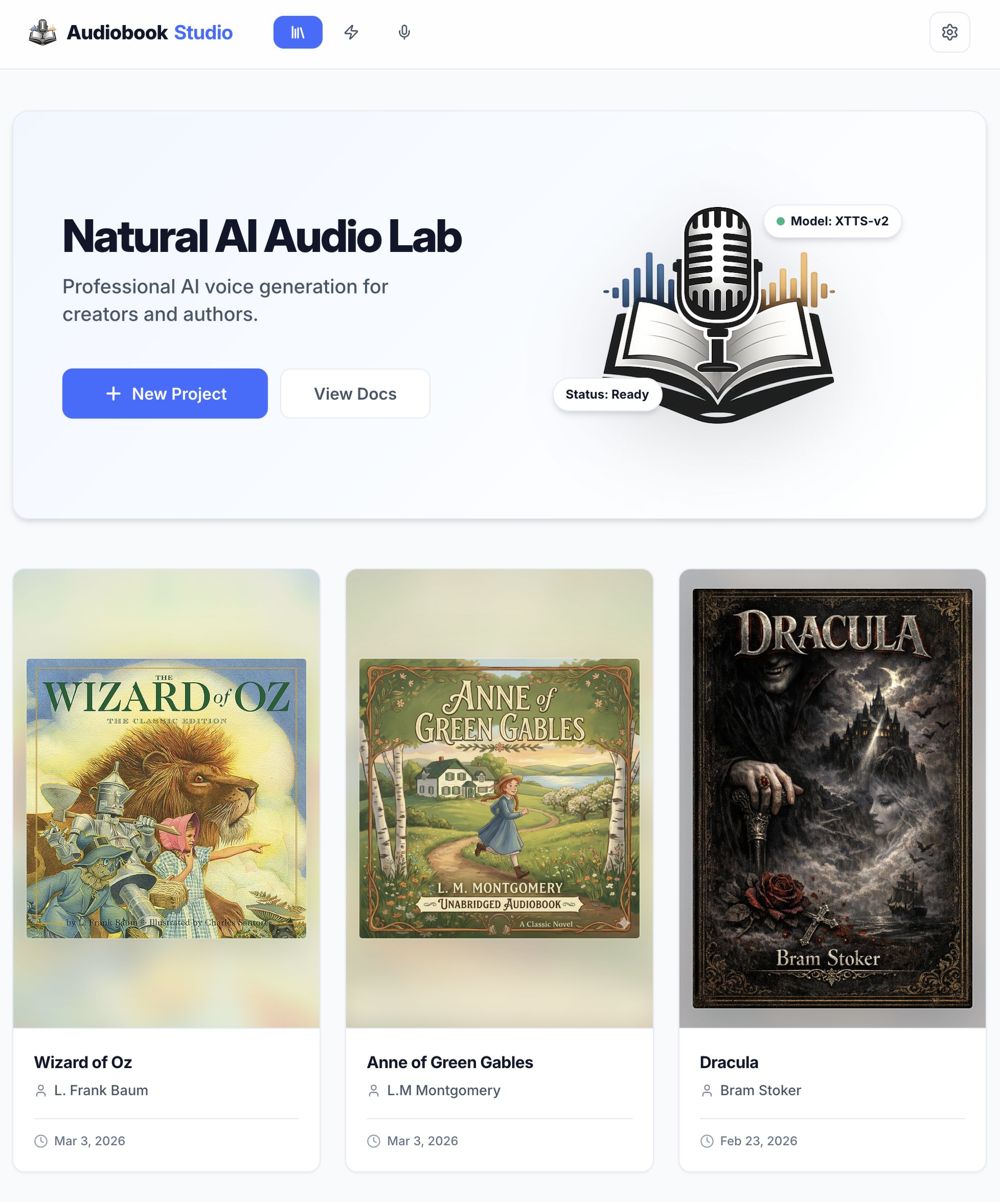
Open the app at http://127.0.0.1:8123. (Pinokio launches it for you.) The top bar has three tabs: Library, Queue and Voices.
Step by step
- Create a project. In the Library, click New Project, fill in the details and click Create.
- Add a chapter. Open the project, click Add Chapter, then upload a
.txtfile or paste your text. - Get a voice. Open the Voices tab and use a voice that is already there (the demo library includes some) or build your own.
- Assign voices. Pick a project voice at the top of the chapter list, or open the chapter and assign voices to the narrator and characters.
- Generate. Click Queue Remaining to queue every chapter without audio. Watch it run on the Queue tab.
- Assemble. When your chapters are done, click Assemble Project and confirm. See Assemble Your Audiobook.
A good first sample
Use three voices. One narrator, one younger voice for dialogue and one older or contrasting voice. That shows you chapter editing, voice assignment, repair and export in one small project.
Exploring the demo library
If you installed with Pinokio and chose the demo library, a Demo Project is waiting on your Library page. Open it to see the chapter list, listen to finished chapters, and look at the bundled voices in the Voices tab. Those voices work in any other project too.