
 Audiobook Studio 1.x docs
Library and Projects
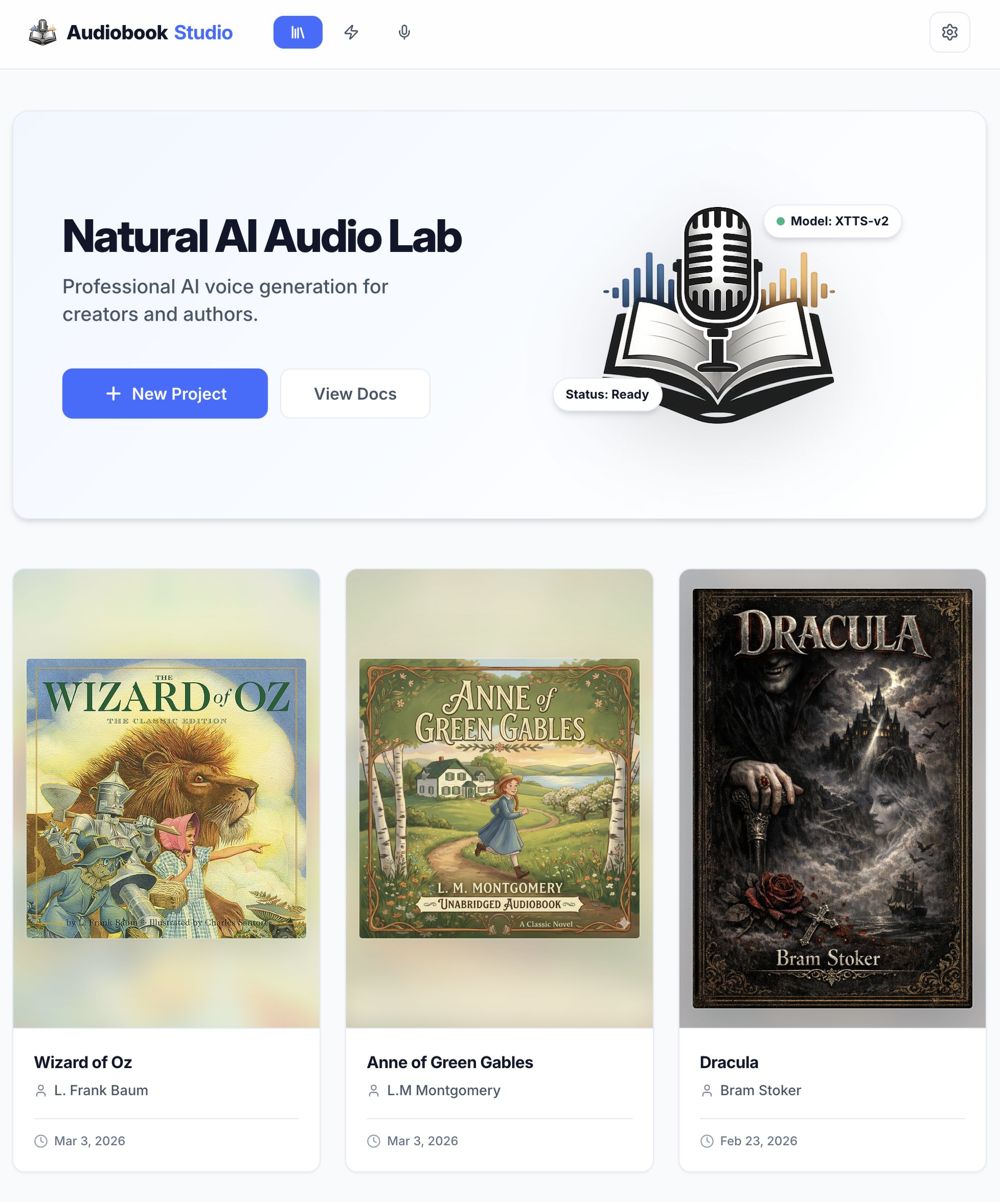
The Library is your control center: every audiobook you are working on lives here as a card.
At a glance
- Click New Project to start a book.
- Inside a project: a Chapters tab and a Characters tab.
- Drag chapters to reorder them.
- Deleting a project removes its text and audio.
The Library
Each project shows as a card. Click a card to open it. To start a new book, click New Project. To remove one, use the menu on its card.
Heads up: Deleting a project removes all of its text and audio. There is no undo.
Inside a project
A project has two tabs: Chapters and Characters.
Chapters
- Add Chapter: upload a
.txtfile or paste text. - Reorder: drag chapters up or down. Sort A-Z sorts them by title.
- Project details: change the title, author or cover.
- Queue Remaining: queues every chapter that has no audio yet.
- Project voice: the menu next to it sets the default voice for the whole book.
Characters
Link each character in your book to a voice. Pick a voice (and a variant, if it has any) for each one.
The status orb
Each chapter has a small round status orb. The center shows the state of the chapter audio: green means it is done, orange means it is out of date (the text changed), and a spinner means it is working. Two small arcs on the outer ring show whether an M4A and an MP3 version exist: solid means yes, light grey means not yet.
Tip: Click an orb that is not working to see actions for that chapter, such as Rebuild Audio or Queue Remaining.