
 Audiobook Studio 1.x docs
Install Audiobook Studio
Pick the install path that matches how comfortable you are with a terminal.
- Easiest: Pinokio, which sets everything up for you.
- Other path: the
run.shorrun.ps1launcher script. - You need Python 3.10+, Node.js 18+ and FFmpeg for the script path.
- The app opens in your browser at
http://127.0.0.1:8123.
Option 1: Pinokio (recommended)
If you are new to GitHub or terminals, start here. Pinokio handles setup and launch for you. During install it can also add an optional demo library, which gives you a nearly finished book to explore right away.
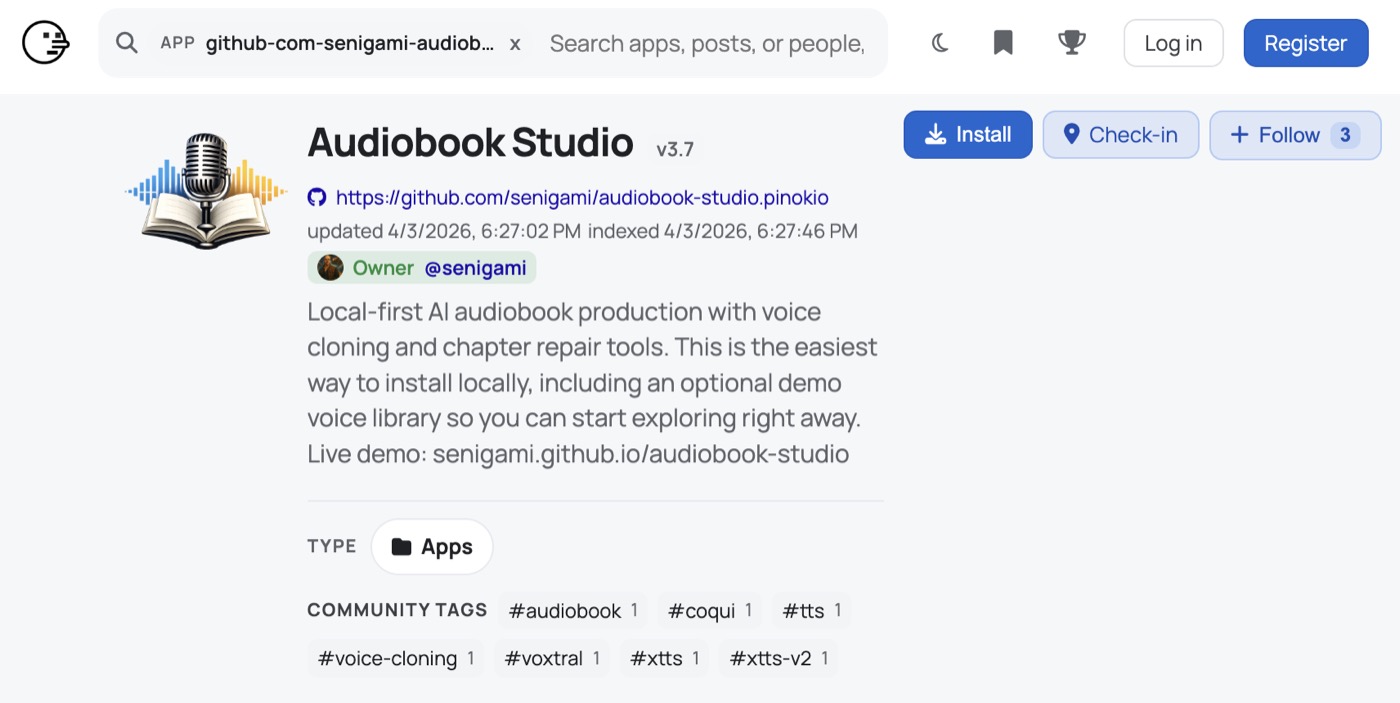
- Open the Audiobook Studio page on Pinokio.
- Click Install.
- Choose whether to include the demo library.
- When it finishes, launch the app from Pinokio.
Option 2: The launcher script
This path is for people who like direct control. You need these installed first:
- Python 3.10 or newer
- Node.js 18 or newer
- FFmpeg
- macOS, Linux or Windows (an NVIDIA graphics card is recommended for faster voice generation)
On macOS or Linux, download the project from GitHub, open a terminal in its folder, and run:
./run.shOn Windows, open PowerShell in the project folder and run:
powershell -ExecutionPolicy Bypass -File .\run.ps1The script sets up what the app needs, builds the screens if needed, and starts the app. The first run takes a while because the voice engine has to set itself up. Watch the terminal window: it shows progress, so a long pause is normal.
Useful options
On macOS or Linux you can add these to ./run.sh:
--setup-only: install everything, but do not start the app.--no-reload: start without auto-reload.--port 9000: use a different port.
On Windows the matching options are -SetupOnly, -NoReload and -Port 9000.
npm or ffmpeg is missing, install it and run the script again.