
 Audiobook Studio 1.x docs
The Chapter Editor
Open any chapter to edit its text, choose who speaks each line, and fix single passages without redoing the whole chapter.
At a glance
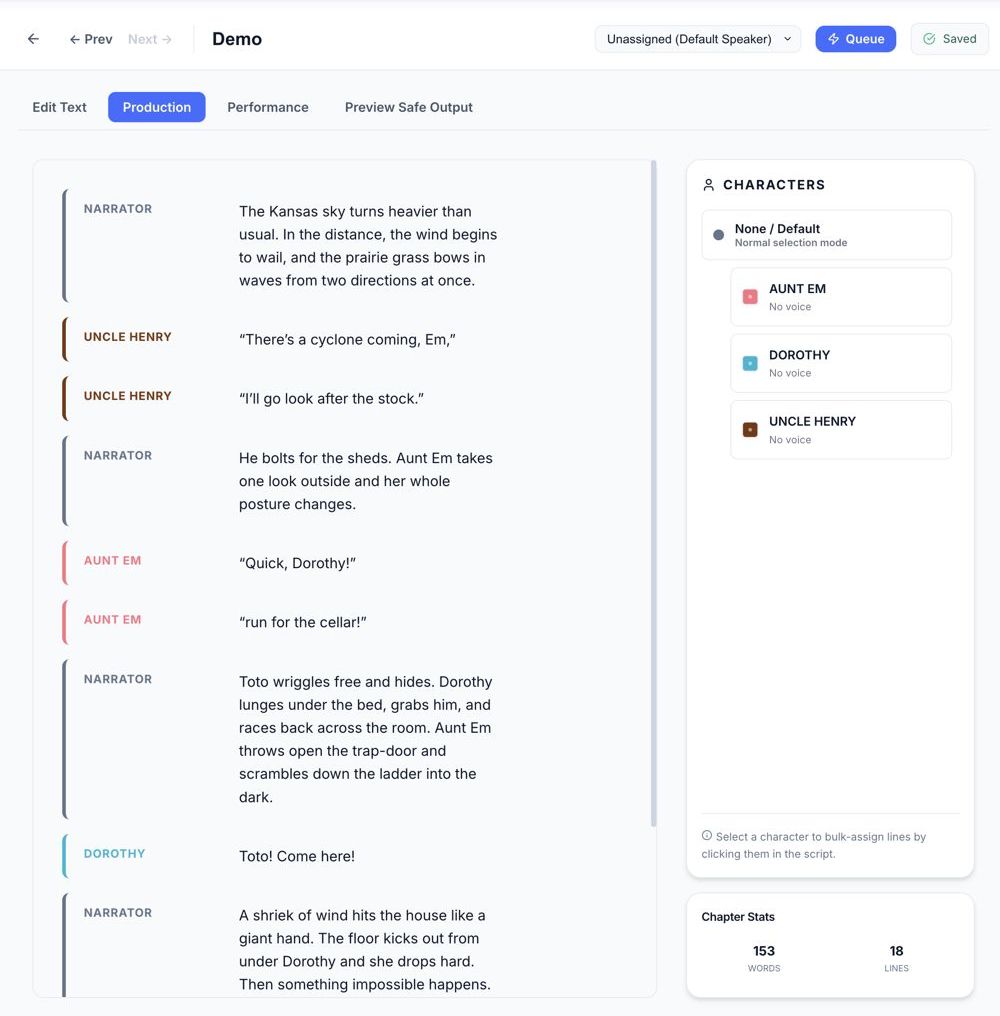
- Four tabs: Edit Text, Production, Performance and Preview Safe Output.
- Production is where you assign voices by selecting text.
- Performance is where you listen and regenerate one block at a time.
- Keep sentences short for the best sound.
The four tabs
- Edit Text: type, paste and clean up the raw text.
- Production: assign voices quickly. Pick a character in the side panel, then click lines in the script to give them that voice.
- Performance: work block by block. Play each block, and generate or regenerate just that one.
- Preview: see how the app will split your text for the voice engine (over-length blocks show a red border).
Fix a block that sounds wrong
- Open the chapter and go to the Performance tab.
- Find the block that sounds wrong.
- If it is a very long sentence, split it into two shorter ones in Edit Text.
- Regenerate just that block and play it back.
Editing is gentle. If you change one sentence, audio for later unchanged blocks is kept when it is still valid.
Keep blocks under 500 characters (see File Formats and Audio Guidance).