
 Audiobook Studio 1.x docs
The Queue
Audiobook Studio makes audio in the background, so you can keep working while chapters generate.
At a glance
- The Queue tab shows what is running, what is next, and recent history.
- Drag items in Up Next to reorder them.
- Pause All Jobs stops the queue until you resume it. Studio runs in the background, so you can keep using your computer while it works.
- You get a time estimate for the job and for the whole queue.
Reading the queue
Open the Queue tab (the lightning bolt in the top bar). It has three parts:
- Processing Now: the current job, with a progress bar and a time estimate.
- Up Next: jobs waiting their turn.
- History: recent finished or failed jobs. Open it from the History heading.
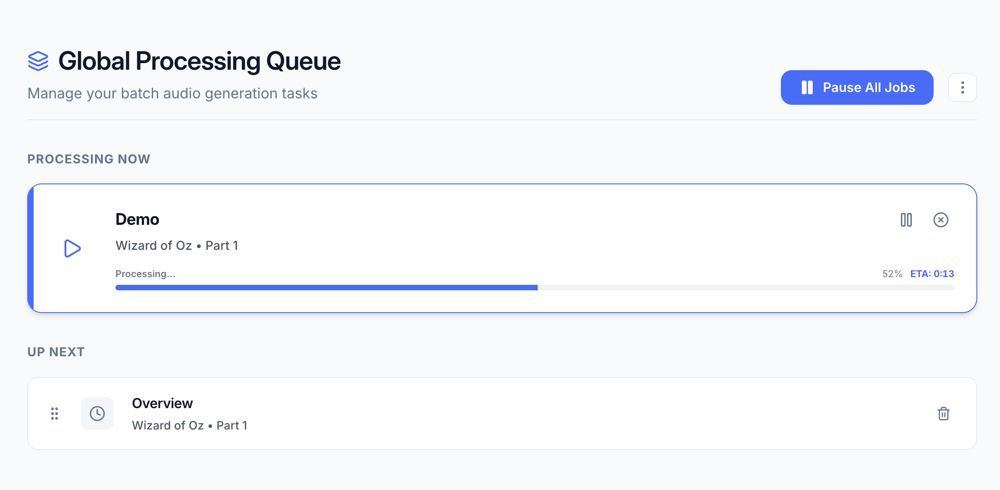
Segment jobs carry titles like overview: segment #7, so you can tell which block they are.
Control your jobs
- Reorder: drag items in Up Next. The app follows your new order as soon as the current job finishes.
- Pause All Jobs: pauses everything (the button turns into Resume Processing).
- Cancel: use the cancel icon on a job. A running job can take a few seconds to stop.
- Clear Completed and Clear All Jobs: in the menu next to the pause button.
Job types
- Generation: making audio for a block.
- Baking: stitching the blocks into one chapter file.
- Assembly: building the final
.m4baudiobook.
How the time estimate works
The app measures how fast it speaks (characters per second) and uses that to estimate the time left for the current job and, at the top of the page, for everything in the queue. The bar keeps moving smoothly between updates, so a long chapter never looks frozen.
Tip: A job failed? Check the History section, and see Troubleshooting for the usual causes.